
How to Set Up IPTV on an LG Smart TV with StreamHub
LG smart TVs run webOS, so an Android IPTV app or APK will not install on them. To watch your provider’s channels on the TV itself, you need an IPTV player for LG TV from the LG Content Store. This guide shows how to set up IPTV on an LG TV with StreamHub, from checking your webOS version to activating a license, and how to fix the problems people meet most often.
Before you start: StreamHub is our product, and it is a player only. It does not include channels, playlists or an IPTV subscription. Use it with an account from a provider you are authorised to watch.
What you need
- An LG TV with webOS 23, 24, 25 or 26. StreamHub passed LG App QA for these versions.
- An Xtream Codes account from your provider: a server URL (usually with a port, such as
http://example.com:8080), a username and a password. - An internet connection. Wi-Fi works, but a wired Ethernet connection is steadier for live TV.
- An LG account signed in on the TV, so you can install apps.
- A phone or computer if you decide to buy a license after the trial.
Step 1: Check your webOS version
Press the settings button on the remote, open All Settings, then General (on some years it is under Support), then About This TV. Look for the webOS TV version. If it starts with 23, 24, 25 or 26, StreamHub is supported. The version number is what counts, not the year printed on the box: some older TVs have been updated to a newer webOS, and TVs that have not been updated stay on the version they shipped with.
While you are there, install any pending software update. It keeps the LG Content Store and the TV’s video decoders current.
Step 2: Install StreamHub from the LG Content Store
- Press the Home button and open Apps, the LG Content Store.
- Select the search icon and type StreamHub.
- Open the StreamHub listing, check that the name and icon match, and select Install.
- When the download finishes, select Open. StreamHub is also added to the app bar on the home screen.
Install only from the LG Content Store. Packages offered elsewhere as “StreamHub for LG” are not ours and cannot be checked.
Step 3: Start the free trial
The first time StreamHub opens, choose Start free trial. The trial gives you the full app for 7 days on that TV, and you do not enter any payment details. You can see how many days are left at any time under Settings.
Step 4: Sign in with your Xtream Codes account
StreamHub then asks for three fields. Move between them with the arrow keys and press OK to open the on-screen keyboard.
- Server URL: the full address your provider gave you, including
http://orhttps://and the port number. Leave out anything after the port. - Username and password: exactly as supplied. Both are case-sensitive.
Select the sign-in button. StreamHub checks the details with your provider’s server and, if they are accepted, loads your live categories, movies and series. A large playlist can take a little longer the first time.
Only have an M3U link?
On LG TVs StreamHub signs in with Xtream Codes details rather than an M3U playlist URL. Many providers build their M3U link from the same details, so check it before asking for new ones. In a link such as http://example.com:8080/get.php?username=NAME&password=PASS&type=m3u_plus, the server URL is http://example.com:8080, the username is NAME and the password is PASS. If your link looks different, your provider can send the Xtream Codes details. On Android phones and Android TV, the StreamHub Android app accepts M3U links directly.
Step 5: Find your way around with the remote
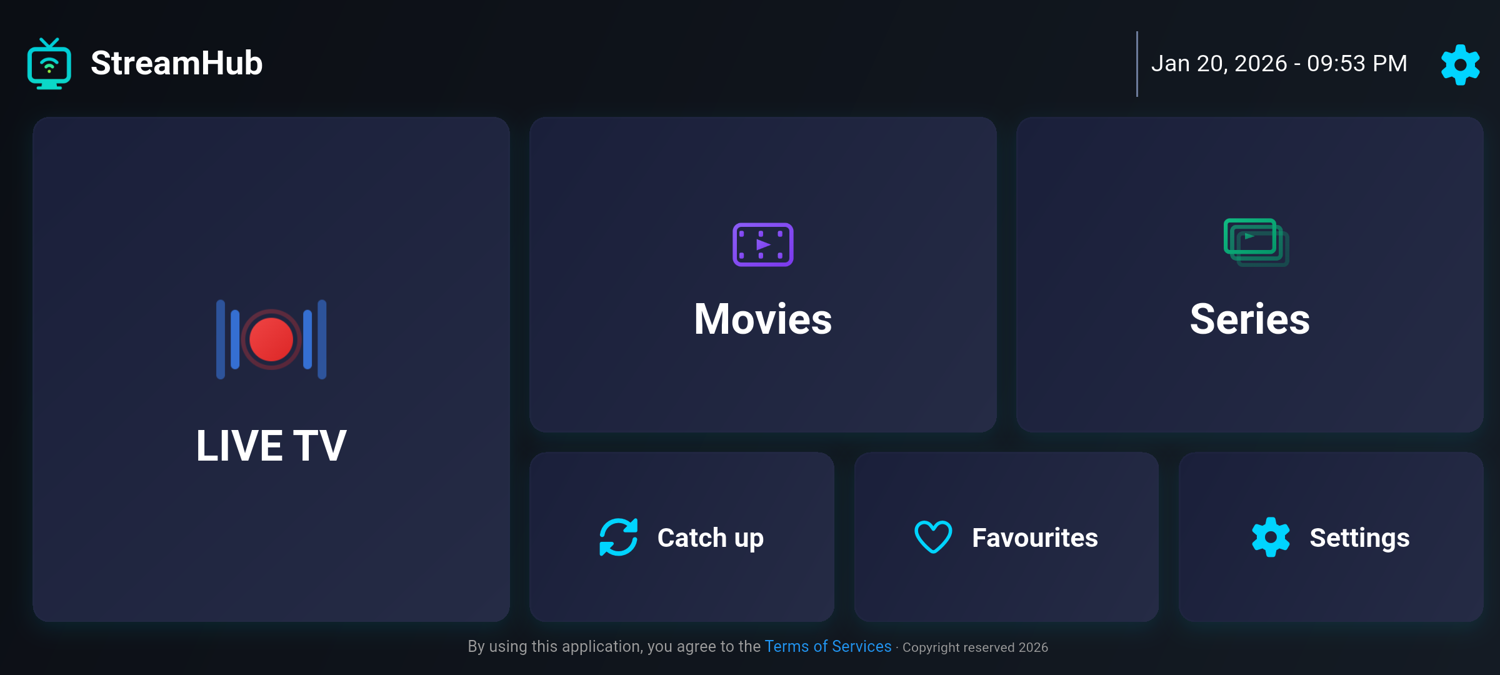
Everything in StreamHub is reachable with the arrow keys, OK and Back. The home screen has six large tiles:
- Live TV: pick a category, then a channel. Programme information for now and next appears when your provider supplies EPG data.
- Movies and Series: your provider’s on-demand library, grouped by category, with seasons and episodes for series.
- Catch up: replay recent programmes on channels where your provider offers catch-up (sometimes called timeshift).
- Favourites: the channels you mark, collected in one place.
- Settings: your account, the trial or license status, and the option to show categories your provider marks as adult. They are hidden until you switch them on.
Use search to find a channel, film or series by name instead of scrolling through long categories.
Step 6: Keep watching after the trial
Before the trial ends, buy a license on your phone or computer from the StreamHub TV license page. There are two plans: €10 for one year or €25 for life. Both are a single payment through Stripe, with no automatic renewal, and one license covers up to 3 TVs.
- Pay on the license page. Your key appears on the confirmation page and is also sent by email.
- On the TV, open Settings, then Subscription.
- Type the key and confirm. The license status in Settings updates straight away.
The website TV license is only for the LG TV app. It does not unlock Premium in the Android app, which is bought through Google Play.
Troubleshooting
“Failed to connect” when signing in
Check the server URL first: it needs http:// or https:// and usually a port such as :8080, with nothing after it. Then re-enter the username and password, watching for capital letters. If the details are right, the account may have expired or reached its connection limit, which only your provider can change.
Channels load but playback buffers
Try a wired Ethernet connection, pause other large downloads on the network, and test a second channel to see whether the problem is one source or all of them. Our IPTV buffering checklist goes through the rest in order.
No programme guide
Programme information comes from your provider’s EPG data. If a channel shows no guide, the provider is not sending one for it.
StreamHub is not in the LG Content Store
Check the webOS version in Step 1 and install any software update. The store only lists StreamHub on webOS 23 to 26.
Some categories are missing
Categories your provider marks as adult are hidden by default. Turn them on in Settings if you want them.
Set up once, watch from the sofa
Setting up IPTV on an LG TV comes down to four things: a supported webOS version, the StreamHub app from the LG Content Store, your provider’s Xtream Codes details and, after 7 days, a license. For an overview of what the app does, see the IPTV player for LG TV page.