
How to Set Up StreamHub with M3U or Xtream Codes
This guide explains the two supported StreamHub connection methods and the separate installation paths for Android and compatible LG webOS televisions. StreamHub is a media player; it does not provide channels, playlists, subscriptions, or provider credentials.
Phase 1: Installing StreamHub on Your Devices
For supported Android phones, tablets, Android TV, and Google TV devices, use the official Google Play listing below. Compatible LG webOS televisions use the separate TV player and website TV licence. Android Premium and the TV licence do not unlock each other.

After installation, review any permission request before accepting it and continue to the profile setup screen.
Phase 2: Adding Your Media Playlists
StreamHub organises provider-supplied details. There are two supported ways to connect a library.
Method 1: Using the Xtream Codes API
Use this method when your provider supplies a server URL, username, and password. Available categories and programme data depend on that provider account.
- Select "Add Profile" from the main screen.
- Choose the "Xtream Codes API" option.
- Enter your provider's server URL, username, and password.
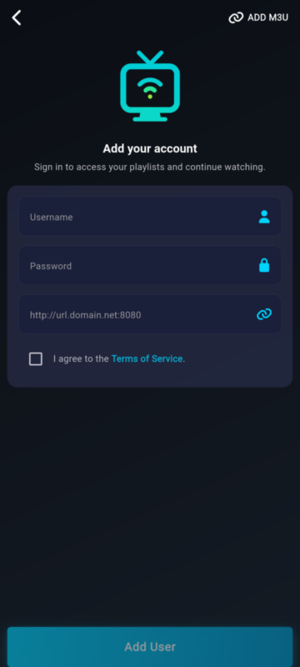
Method 2: M3U URL Integration
When your provider supplies an M3U URL, paste it into the "M3U URL" field and give the profile a recognisable name. Treat playlist URLs like credentials and do not post them publicly.
Phase 3: Navigate the Interface
On television layouts, StreamHub provides large destinations and visible focus for remote-control use. Categories can include Live TV, Movies, and Series when those sections are present in the connected account.
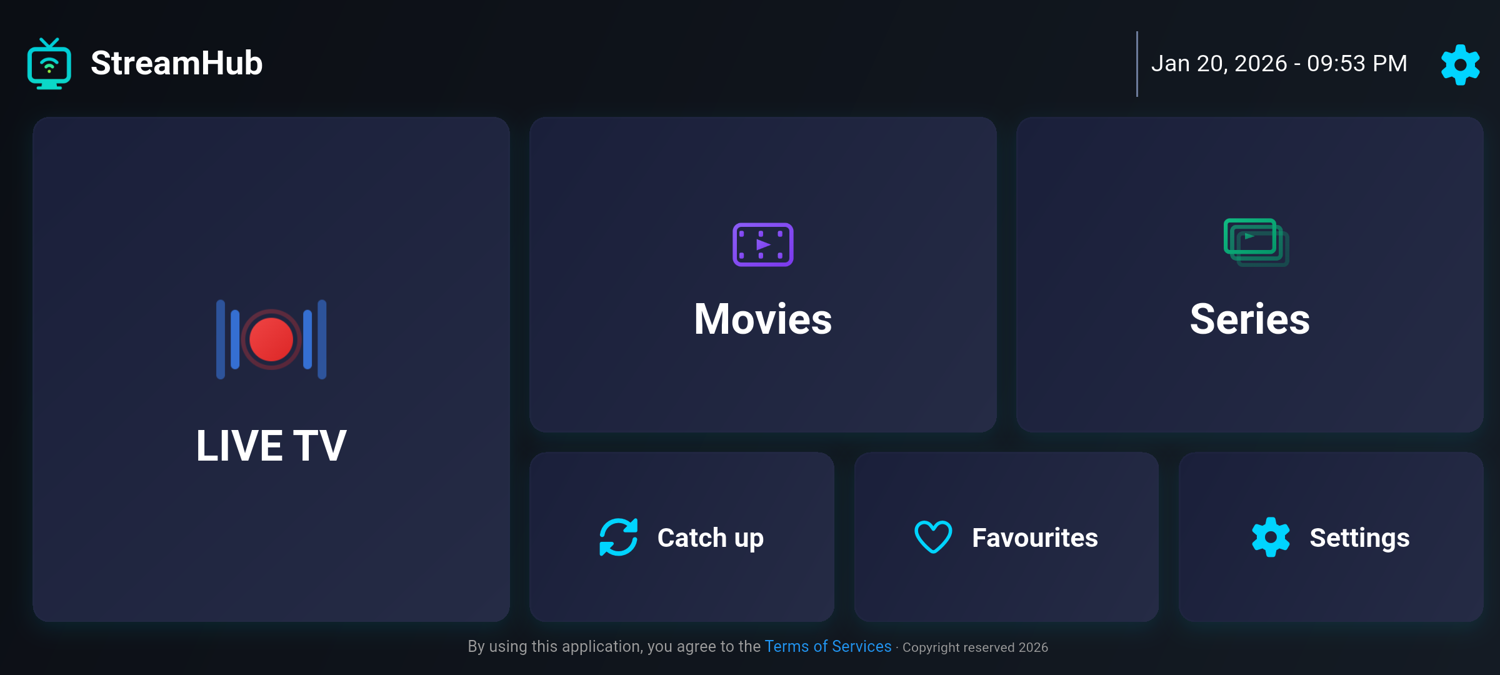
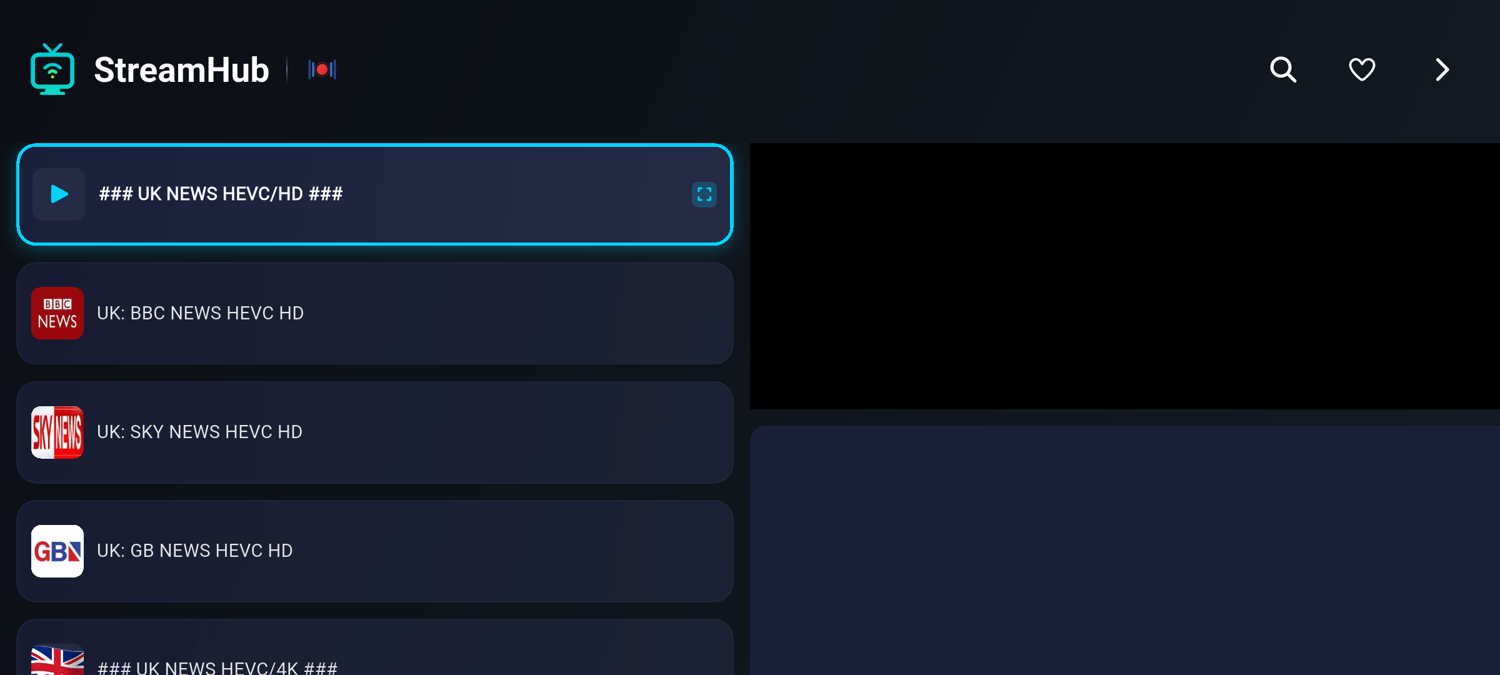
Live TV Dashboard
Access real-time broadcasts with an integrated EPG (Electronic Program Guide). The guide helps you see what is currently playing and what is coming up next.
Movies and Series VOD
Video-on-demand entries can include posters and metadata when the connected provider supplies them.
Phase 4: Optimizing Playback and Settings
Review the playback settings available on your device. Resolution and codec support depend on the source, operating system, hardware decoder, display, and current player version.
- Navigate to the "Settings" gear icon.
- Compare the available decoder options if a specific authorised stream does not play correctly.
- Return to the previous setting if the change introduces visual or audio problems.
Phase 5: Optional Connection Privacy
A VPN is not required to use StreamHub and does not repair an unavailable provider source, unsupported codec, or weak home network. It can provide connection privacy on supported devices, particularly on networks you do not control.
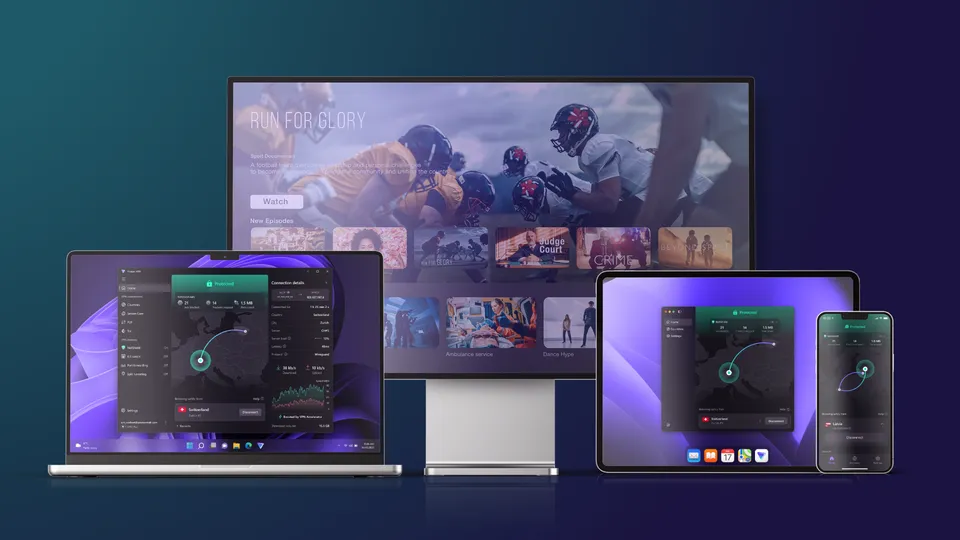
Proton VPN is our optional affiliate partner. Review its current features, privacy documentation, device support, and terms on Proton's official site. A VPN does not grant content rights or permission to bypass service restrictions.

Connection Privacy with Proton VPN
Proton VPN is a separate service. Confirm current plan limits and compatibility before subscribing.
- Encrypted connection on supported devices
- Useful on shared or public networks
- May add latency or reduce throughput
- Separate from StreamHub and your provider
Phase 6: Troubleshooting Common Connection Issues
If a library fails to load, confirm the server URL and credentials exactly as supplied by the provider, then check whether the same account works through the provider's supported method. Before clearing application storage, remember that it can remove saved profiles and preferences.
Conclusion
Your M3U player setup or Xtream profile should now be ready. If categories or playback differ from expectations, record the affected source, device, and connection type before contacting your provider or StreamHub support.