
Comparison
Kodi vs IPTV Players: Setup and TV Navigation
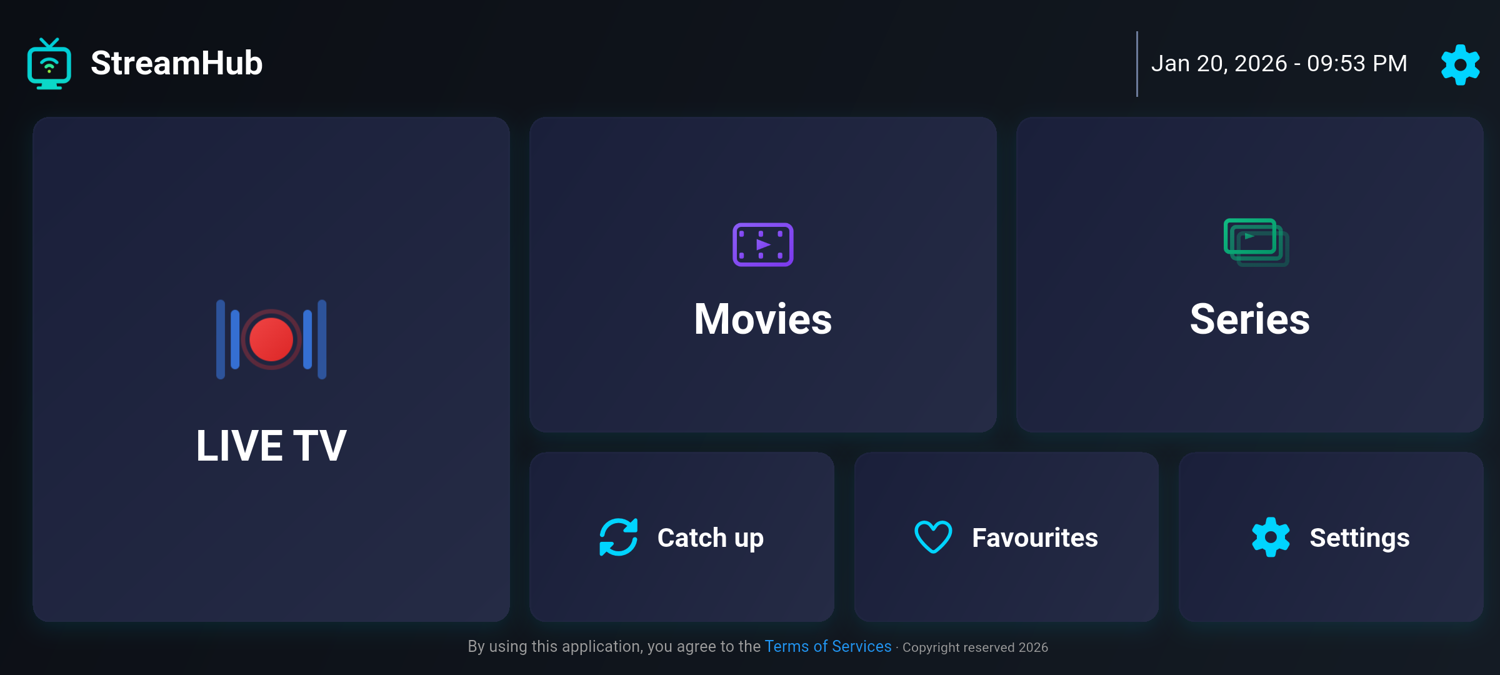
Kodi and dedicated IPTV players solve different problems. Kodi is an open-source media centre that can manage local files, music, add-ons and live television. A dedicated player such as StreamHub focuses on one job: organising the M3U playlist or Xtream Codes account supplied by your provider. The real comparison is breadth against focus, and this guide shows where each one makes sense.
Editorial disclosure: StreamHub is our product. Kodi is free, open-source software from the Kodi Foundation; check kodi.tv for current versions and supported platforms.
Kodi: a broad media centre
Kodi can manage local films, music and photos, network shares, add-ons and live television through a PVR client. It runs on many platforms, can be reshaped with skins, and suits people who like to build their own setup. That flexibility also means more parts to configure and keep up to date.
- Broad media support: local files, network sources, music and add-ons in one application.
- More configuration: IPTV needs a PVR client plus playlist and programme-guide settings.
- General-purpose navigation: the interface serves a whole media centre rather than one provider library.
How IPTV works in Kodi
Kodi does not play an IPTV playlist on its own. The usual route is the official PVR IPTV Simple Client add-on:
- Install PVR IPTV Simple Client from Kodi’s official add-on repository.
- In its settings, enter the M3U playlist URL from your provider.
- Add an XMLTV programme-guide URL if your provider supplies one separately.
- Enable the add-on and open the TV section once channels and guide data have loaded.
Some third-party add-ons offer Xtream Codes logins. Install add-ons only from sources you trust, because unofficial repositories are a common source of broken or unsafe code.
StreamHub: a focused provider player
StreamHub asks for an M3U playlist or Xtream Codes account and turns it into live TV, movies and series on one home screen. It shows programme information when your provider supplies EPG data, offers catch-up on Android where the provider supports it, and keeps favourites and search one press away. The television layout uses large tiles and a visible focus highlight, so it works with a basic remote. It does not manage Kodi add-ons or a local media library.
StreamHub is on Google Play for Android phones, tablets, Android TV and Google TV. A separate StreamHub app for LG TVs with webOS 23 to 26 signs in with Xtream Codes.
| Feature | Kodi | StreamHub |
|---|---|---|
| Primary purpose | General media centre | Provider playlist player |
| Provider setup | PVR client plus playlist configuration | M3U or Xtream Codes details in the app |
| Movies and series | Depends on add-ons | From the Xtream Codes account, grouped by category |
| Programme guide | XMLTV guide through the PVR client | Now and next from the provider’s EPG |
| Navigation | General media-centre interface | Phone and TV layouts built for touch or remote |
| Maintenance | Core application and add-ons | Single player application |
| LG webOS TVs | No official webOS app; check kodi.tv | Native app for webOS 23 to 26 |
Pros and cons
Kodi
- Pros: free and open source, runs on many platforms, handles local media and live TV together, deeply customisable.
- Cons: more setup steps, add-ons to maintain, and an interface that is not built around one provider’s library.
A dedicated IPTV player
- Pros: sign in once and the library is ready, a layout designed for live TV and on-demand content, fewer moving parts.
- Cons: does one job; no local media centre or add-on ecosystem.
Which setup fits?
- You keep films and music on a drive or network share: Kodi brings them and live TV together.
- You mainly watch your provider’s channels and on-demand library: a dedicated player gets you there with fewer steps.
- Your TV is an LG: a native webOS app such as StreamHub avoids an extra box.
- Several people use the TV: a simple tile layout is easier for everyone than a customised media centre.
Can you use both?
Yes. Many viewers keep Kodi for their local library and use a dedicated player for live TV. Your provider account works in either, subject to its connection limits, because the playlist belongs to the provider and not to the app.
Setup time compared
With Kodi, a first IPTV setup means installing Kodi, adding PVR IPTV Simple Client, entering the playlist and guide URLs, waiting for channels and guide data to import, and often choosing a skin that suits a TV remote. Expect to spend some time on it, and to come back when an update changes a setting.
With a dedicated player, you install the app, choose M3U or Xtream Codes, type the details and start browsing. The trade-off is flexibility: you get the layout the player offers, not one you design yourself.
Performance on low-cost TV boxes
Kodi is a large application with many features loaded in the background. On budget Android TV boxes with little memory, a lighter dedicated player can feel quicker when moving through long channel lists. Either way, playback smoothness depends mainly on the stream, the codec and the device’s hardware decoder; our 4K and HDR guide explains the decoder side.
Frequently asked questions
Is Kodi legal?
Yes. Kodi is legal open-source software. What matters is the content: only use playlists and add-ons from sources you are authorised to watch.
Is Kodi good for IPTV?
It works well once PVR IPTV Simple Client is configured, especially if you want live TV next to a local library. If you only want your provider’s channels, a dedicated player is quicker to set up.
Does StreamHub replace Kodi?
Only for IPTV. StreamHub plays your provider’s account; it does not manage local files or Kodi add-ons.
The short version
Choose Kodi when you want one configurable media centre for local files and add-ons. Choose a dedicated player such as StreamHub when the main task is browsing a provider playlist on Android, Android TV or an LG TV. Neither application supplies channels or provider access. To try StreamHub, follow the StreamHub setup guide.