
How to Set Up IPTV on Samsung Smart TV (Tizen OS)
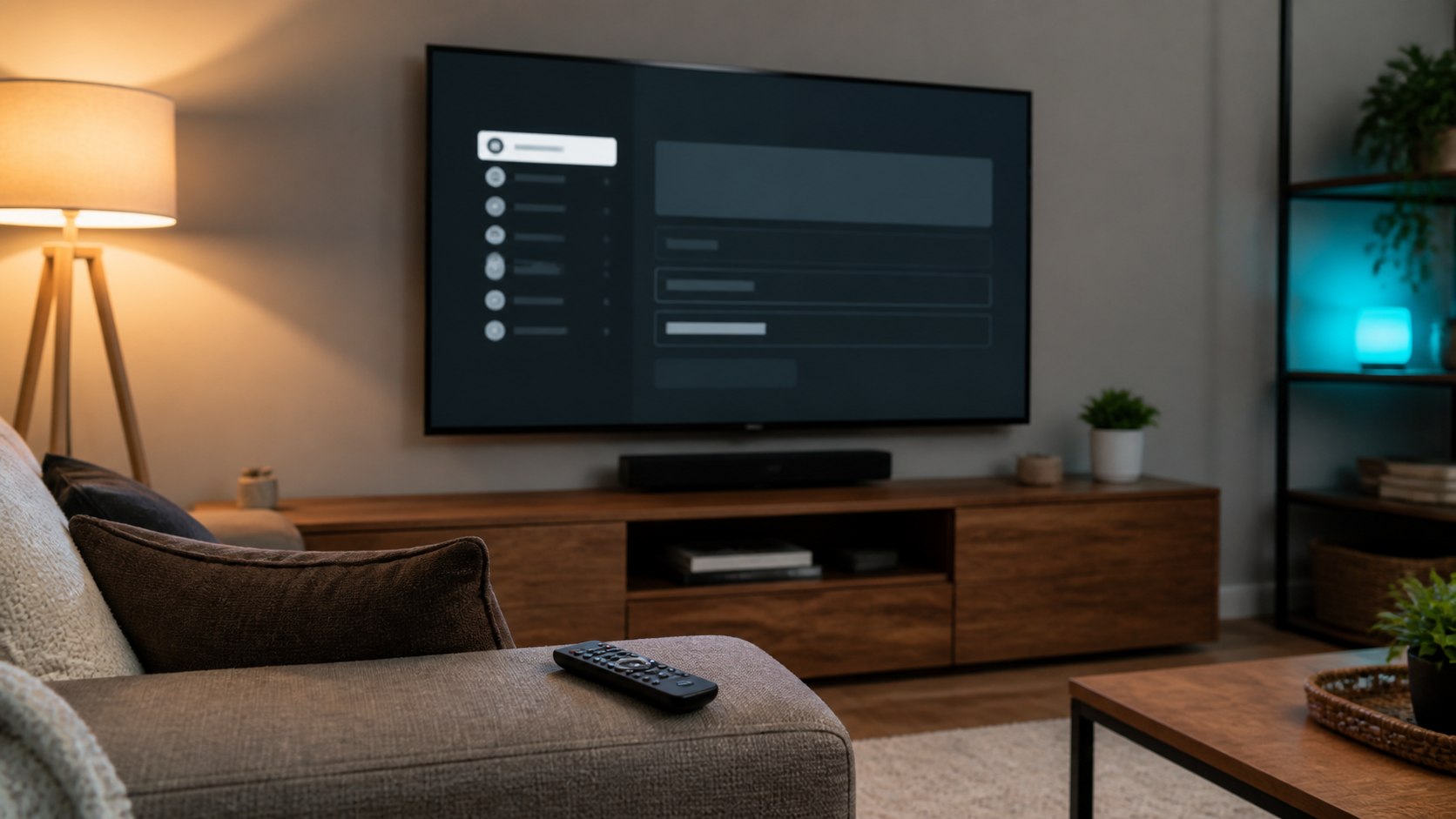
Samsung Smart TVs use Tizen OS rather than Android TV. That distinction matters: an Android APK or Google Play listing does not mean the application can run on a Samsung television. This guide explains how to choose an application available for your exact TV model and connect provider-supplied details safely.
StreamHub availability: StreamHub does not currently have a public Samsung Tizen release. Do not pay for a StreamHub TV licence or download an unofficial package expecting Samsung compatibility.
Have an LG TV instead? StreamHub runs on LG TVs with webOS 23 to 26: see the IPTV player for LG TV and the LG TV setup guide.
Why Choosing the Right Player on Tizen OS Matters
Samsung distributes television applications through Samsung Apps. Availability can differ by TV generation, region, and account settings, so confirm that the listing names your model before entering any provider credentials.
Prefer a player with clear publisher information, an accessible privacy policy, recent maintenance, remote-control navigation, and documented support for the playlist or account format supplied by your provider.
Step-by-Step IPTV Setup for Samsung TV
Follow these steps to connect your IPTV service to your Samsung Smart TV:
- Choose an official player: Press the Home button on your Samsung remote, open Apps, and select an application officially listed for your TV model. StreamHub will not appear because there is no public Tizen release.
- Get your provider details: Use only the M3U playlist, server URL, username, password, or EPG information supplied by a service you are authorised to access.
- Follow that player's setup: Some applications accept details directly on the television; others use a device code and a separate web portal. Verify the portal domain from the official app listing before entering credentials.
- Review before playback: Confirm that categories and programme data match your provider account. Sign out and contact the application publisher if the setup flow requests unrelated payment or personal information.
Pro Tip: Troubleshooting Buffering Issues
If you experience stuttering or buffering on high-bitrate 4K channels, connect your Samsung TV directly to your router using an Ethernet cable rather than Wi-Fi. Additionally, verify that your IPTV provider supports HLS or TS formats for Tizen media pipelines.
Conclusion
Setting up an IPTV player on Samsung Smart TV starts with an official Tizen application compatible with your model and region. StreamHub currently supports documented Android, Android TV, Google TV, and compatible LG webOS routes—not Samsung Tizen. For general network checks, see our guide on how to troubleshoot IPTV buffering.